From a GEDCOM file to a family tree website in a few steps. It takes about half an hour; a large tree with many photos takes longer to upload.
Before you start
- A WordPress site: WordPress 6.0 or newer, PHP 7.4 or newer.
- Your tree exported as a GEDCOM file. Every genealogy program can do it, usually with File → Export → GEDCOM. GEDCOM 5.5, 5.5.1 and 7.0 / 7.1 are all fine.
- If your program links photos to people: the folder with those photos. Or export the tree as an archive with the photos (GEDZIP, .gdz).
- A backup of your site, as before any big change.
1. Install the plugin
In the WordPress dashboard open Plugins → Add New, search for RootsPersona, press Install Now and then Activate.
The plugin adds two places to the dashboard: Settings → RootsPersona (how the pages look and who sees what) and Tools → RootsPersona (uploading the tree and making pages).
2. Choose where the pages go
Open Settings → RootsPersona and pick the Parent page. The pages of people are created as sub-pages of it, for example Family tree → Ivan Petrov. They are kept out of menus and page lists, so a tree of thousands of people does not flood your menu.
On the same screen you can choose the layout of the person page (Classic, Archive card or Chronicle) and the privacy rules. You can change all of it later.
3. Upload the tree
Open Tools → RootsPersona → Upload GEDCOM and choose your file: .ged, .gdz or a .zip with the GEDCOM file and the photos. For the first tree leave the Batch Id at 1.
A large tree is read in small steps with a progress bar, so it is not stopped by the time limit of your hosting. When it is done, a report tells what was loaded. The uploaded copy of the file is deleted from the site after reading; the file on your computer is not touched.
4. Create the pages of people
Open Tools → RootsPersona → Add Uploaded Persons. Select the people who should get a page, or the whole list, and press the button. Any number of people can be added at once: the pages are created in portions, with a progress line.
The list shows only people who do not have a page yet. An empty list means everyone already has one.
5. Add the photos
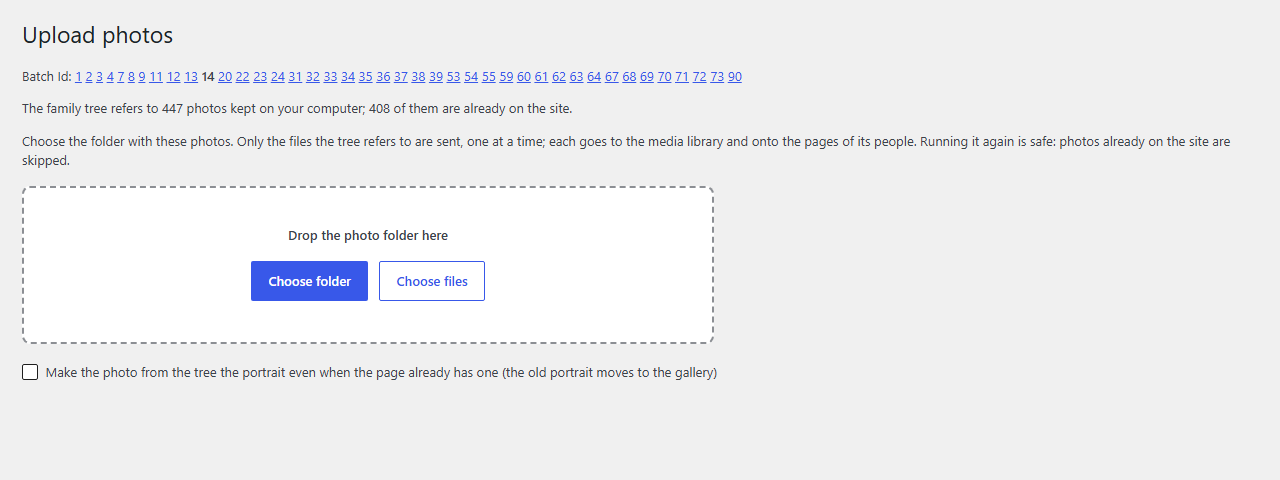
A GEDCOM file only names the photo files on your computer, it does not contain them. Open Tools → RootsPersona → Upload photos and choose the folder with the photos. Only the files the tree refers to are uploaded. Each photo goes to the pages of its people: the first one becomes the portrait, the others go to the gallery. Running it again is safe, nothing is uploaded twice.
Skip this step if you uploaded a .gdz or .zip archive with the photos: they are already on the pages.
6. Make a front page and search
Create a page, for example “Family tree”, and put this shortcode on it (in Elementor: the Shortcode widget):
[rootspersona_hub]It shows the tree in numbers, faces of the older generations, remembrance days, ways into the tree, surnames and places.
For search, put the search box where visitors will see it, for example in the header, and a results page:
[rootspersona_search results="/search/"]
[rootspersona_search_results]
The first goes into the header, the second onto a page with the address /search/. Then add the front page of the tree to your menu.
When the tree changes
Keep working in your genealogy program as usual. To update the site, export the tree again and upload it on Upload GEDCOM with the same Batch Id. People are updated in place: their pages, addresses, your own text on the pages and the photos stay. People who are new in the tree can get pages in Add Uploaded Persons.
Your program may renumber people between exports. RootsPersona recognises them by their code, name and birth year or by their relatives. If the file looks like a different tree, the upload stops before anything is changed.
If something goes wrong
If an upload fails, open Upload GEDCOM, press Clear log, repeat the upload, then press Download log. Ask on the support forum and offer to send the log file: it may contain names from your tree, so do not post it publicly.
More about files, updates, export and upload errors: GEDCOM: import and export.