GEDCOM is the common file format of genealogy programs. RootsPersona reads the GEDCOM file of your program into its own tables in the WordPress database, and the pages of people are built from those tables. This page tells what files are accepted, how to keep the site up to date, how to get the tree back out, and what to do when an upload fails.
Which files are accepted
- Versions: GEDCOM 5.5, 5.5.1, 7.0 and 7.1.
- Files: a .ged file; a GEDZIP archive (.gdz, GEDCOM 7 with the photos); or a .zip with a GEDCOM file and the photos. From an archive the photos go onto the pages of their people by themselves.
- Encodings: UTF-8, UTF-16, ANSEL and Windows code pages. Cyrillic “ANSI” files (Windows-1251) and KOI8-R are recognised, so are old Mac line ends and very long lines.
- Programs: any program that exports GEDCOM. Their own tags are understood too: married names (_MARN, _MARNM), adoption and fostering (_FREL, _MREL), other names (_AKA), the main photo (_PRIM), the codes of people (_UID, FamilySearch ids).
What is kept: all names, events and facts with dates, places with coordinates, addresses, age and cause; notes; sources with the cited page and quoted text, and their repositories; families with marriage, divorce, adoption; photos and restrictions.
Uploading
Open Tools → RootsPersona → Upload GEDCOM, choose the file and press Upload. The file is read in short steps with a progress bar, so a large tree is not stopped by the time limit of your hosting. The Step time field sets how long each step is: lower it on slow hosting, raise it to finish faster. When the upload is done, a report tells what was loaded.
If the file is refused as too large, the limit is set by your hosting (the PHP setting upload_max_filesize). Ask your hosting to raise it, or upload the tree as a .zip: an archive is much smaller than the .ged file.
The uploaded copy of the file is deleted from the site after reading, together with the archive it came in. The file on your computer is not touched.
Batch Id: one site, several trees
Each tree on the site has its number, the Batch Id. A site with one tree always uses 1. A second, separate tree can be uploaded with Batch Id 2: it lives apart, and people of different trees are not linked to each other. To show the second tree, add batch="2" to the shortcode, for example [rootspersona_hub batch="2"].
Updating the tree
Keep working on the tree in your genealogy program. To update the site, export the tree again and upload it with the same Batch Id. This is the normal way of work, not a risk:
- People and families are updated in place. Their pages, addresses, your own text on the pages and the photos stay.
- Your program may give people new numbers (I123) between exports. RootsPersona recognises them by their code (_UID), by name and birth year or by their relatives, so nobody lands on someone else’s page.
- If too many people cannot be recognised, the file is probably a different tree, and the upload stops before anything is changed. If you are sure it is the right file, tick Import even if the numbers differ and upload again.
- People who are no longer in the file are listed in the report. Their pages are not deleted: decide yourself what to do with them.
- People new in the tree get pages in Tools → RootsPersona → Add Uploaded Persons.
- If page titles look out of date after the update (for example a name was corrected), run Sync page titles from database on the same Tools screen.
Exporting the tree
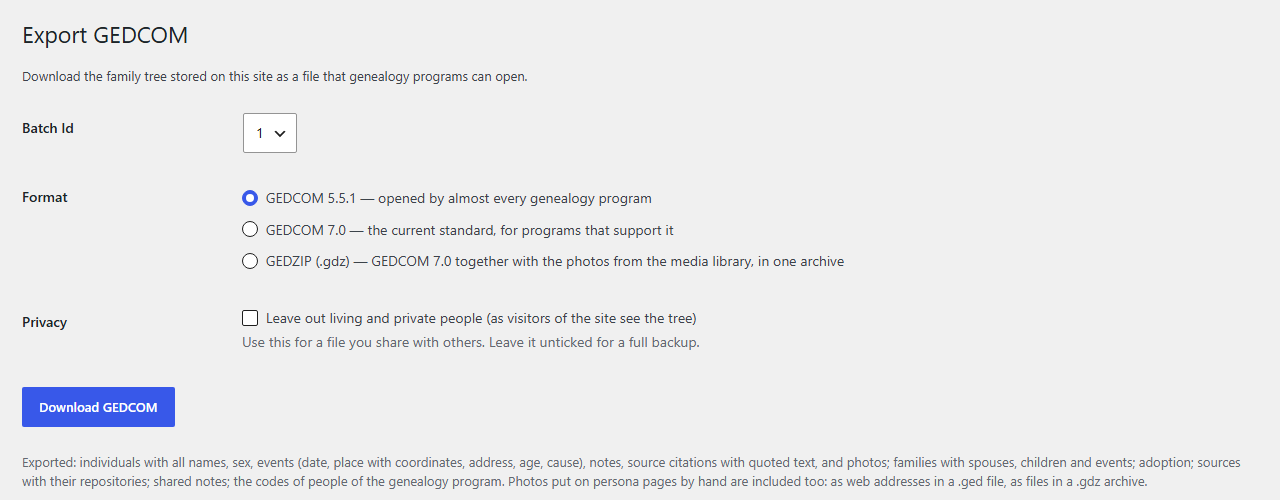
Tools → RootsPersona → Export GEDCOM downloads the tree stored on the site as a file that genealogy programs can open: a backup, or a copy for relatives and other programs. Choose the format:
- GEDCOM 5.5.1 — opened by almost every genealogy program.
- GEDCOM 7.0 — the current standard, for programs that support it.
- GEDZIP (.gdz) — GEDCOM 7.0 together with the photos from the media library, in one archive.
Tick Leave out living and private people for a file you give to others: it holds the tree as visitors of the site see it. Leave it unticked for a full backup. Photos you put on pages by hand are exported too.
When an upload fails
RootsPersona keeps its own log of every upload. It lists each step, the GEDCOM record that was being read when the error happened and the exact database error. To get a clean log:
- Open Tools → RootsPersona → Upload GEDCOM and scroll to the Import log box.
- Press Clear log.
- Upload the file again.
- Press Download log.
Then describe the problem on the support forum: the plugin and WordPress versions, which program made the file, and what you see on the screen. The log may contain short pieces of your family data (names, notes), so do not post it publicly; the developer will tell you how to send it.