Every person of the tree can have their own page on your site. It is an ordinary WordPress page: it has the person’s name as its title, its own address, it is found by search engines, can be linked from your posts, can take comments and your own text.
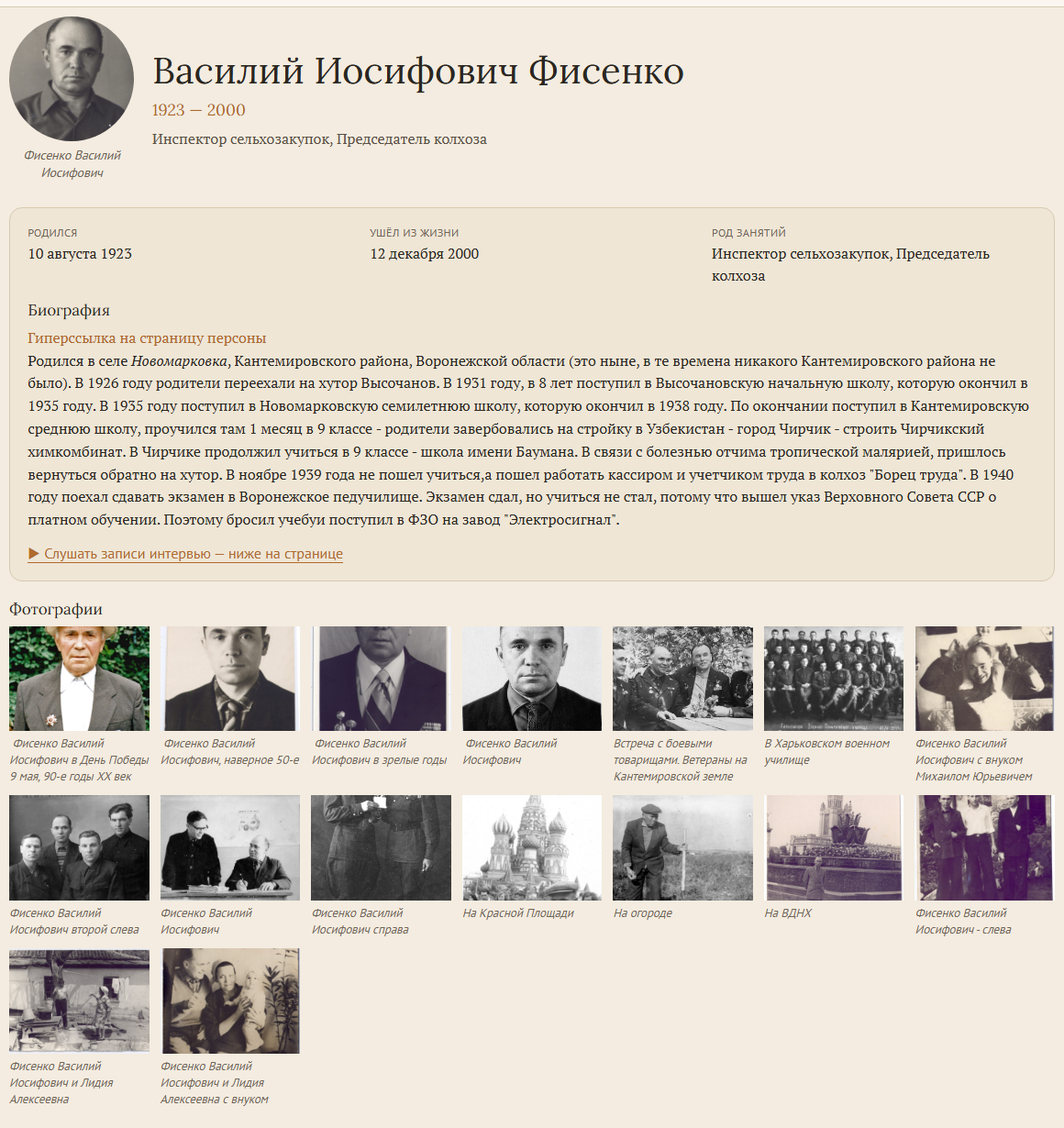
What the page shows
- Names: birth name, married name, also known as, nickname.
- Events and facts: with dates, places, addresses, age and cause; notes.
- Family: parents, spouses with marriage and divorce, children, adoption and fostering, a three-generation tree and the number of descendants. Every relative with a page is a link.
- Sources: with the cited page and the quoted text.
- Photos: the portrait and a gallery that opens photos large.
- Map of the places of the person’s life.
Sections without data are not shown. For search engines the page carries schema.org Person markup.
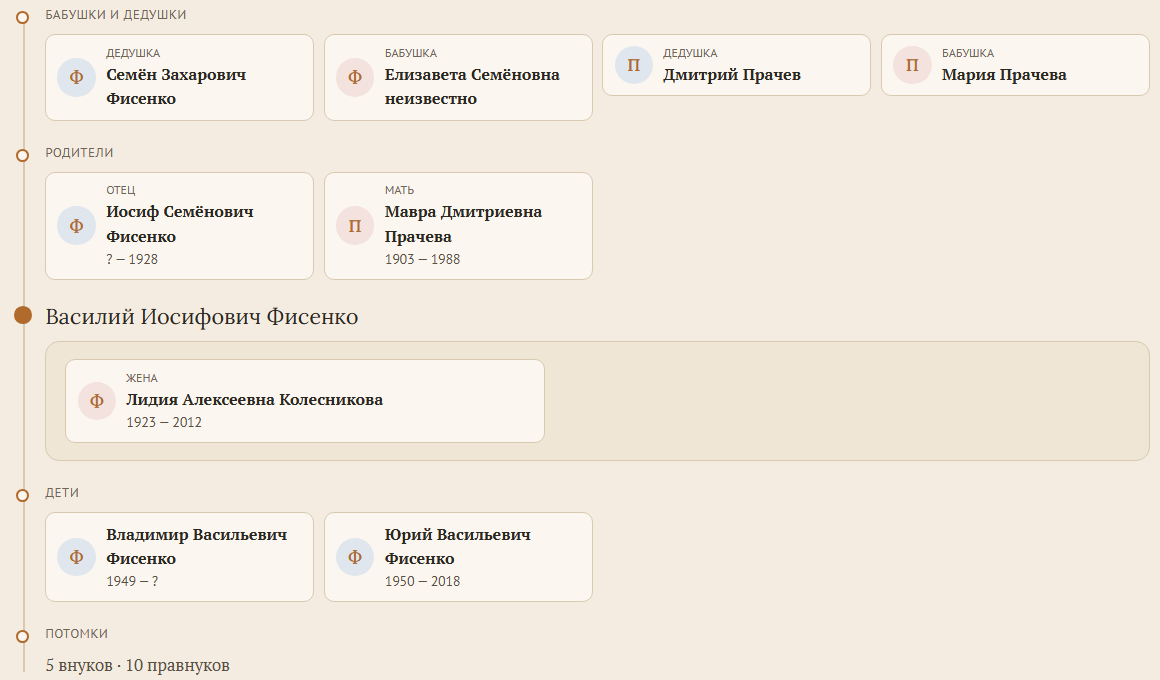
Three layouts
Choose the layout in Settings → RootsPersona → Persona page → Persona page template:
- Classic (panels) — the original layout of the plugin: a header with the picture and separate panels for facts, ancestors, families, descendants and sources. Each panel can be switched off.
- Archive card — like a card from a family archive: portrait, facts, biography, family and photos.
- Chronicle (line of generations) — the person between ancestors and descendants, generation by generation.
Archive card and Chronicle take their fonts from your theme. On the Colours tab choose a colour set — Sepia, Neutral, Dark or the colours of your theme — or pick your own colours; the preview shows the result at once. A single page can use another layout than the rest: add template="archive", template="chronicle" or template="classic" to its shortcode.
What to show on all pages
On Settings → RootsPersona → Persona page:
- Show dates and Show places — untick to hide them on all pages, for example for privacy.
- Show on the page — biography, photos, map of places.
- For the Classic layout: which panels to show, silhouettes in place of missing photos, edit links at the bottom of the page.
Dates
Dates are written in the language of the site, not as raw GEDCOM: “15 March 1822”, “about 1890”, “between 1852 and 1854”, “from 1846 to 1890”. Old Style (Julian) dates show the New Style in brackets: “15 (27) March 1822”.
Photos
A page takes any number of photos: the first is the portrait, the others form the gallery. The photos your genealogy program links to people are put on their pages by Tools → RootsPersona → Upload photos or come with a .gdz / .zip archive (see Getting started). You can also add photos to a page by hand: they stay when the tree is updated.
Map of places
When the GEDCOM file gives coordinates of a place, the page shows the places of the person’s life on a map. Most genealogy programs can add coordinates to places. The map is drawn with Leaflet, which comes with the plugin, and the map images come from OpenStreetMap: when a visitor scrolls to the map, their browser loads the images from the OpenStreetMap servers, which see the visitor’s IP address. Mention it in your privacy policy if your site needs one. To switch the map off, untick Map of places in Show on the page.
Your own text on the page
Inside, a persona page holds one shortcode, for example:
[rootsPersona personId="I1" batchId="1" /]Everything around it is yours: memoirs, letters, audio or video, a gallery. Updating the tree from a new GEDCOM file changes only what the shortcode shows; your own text stays.
The Archive card and Chronicle layouts can be printed in parts, so your content can sit between them. Use several shortcodes with part="…":
part="intro"— name, portrait and the main facts;part="family"— the family;part="photos"— the gallery;part="map"— the map;part="sources"— the sources;part="rest"— everything except the intro (family, photos, map, sources).
[rootsPersona personId="I1" batchId="1" part="intro" /]
(your memoirs here)
[rootsPersona personId="I1" batchId="1" part="rest" /]
Elementor and other page builders
Persona pages can be built in Elementor or another page builder. Put the shortcode into a Shortcode widget, whole or in parts as above, and your own widgets in between. Upload photos puts the portrait into the widget with the intro and the other photos into the widget with the photos.
Who may see a page and what living people show is described in Privacy (coming soon).